
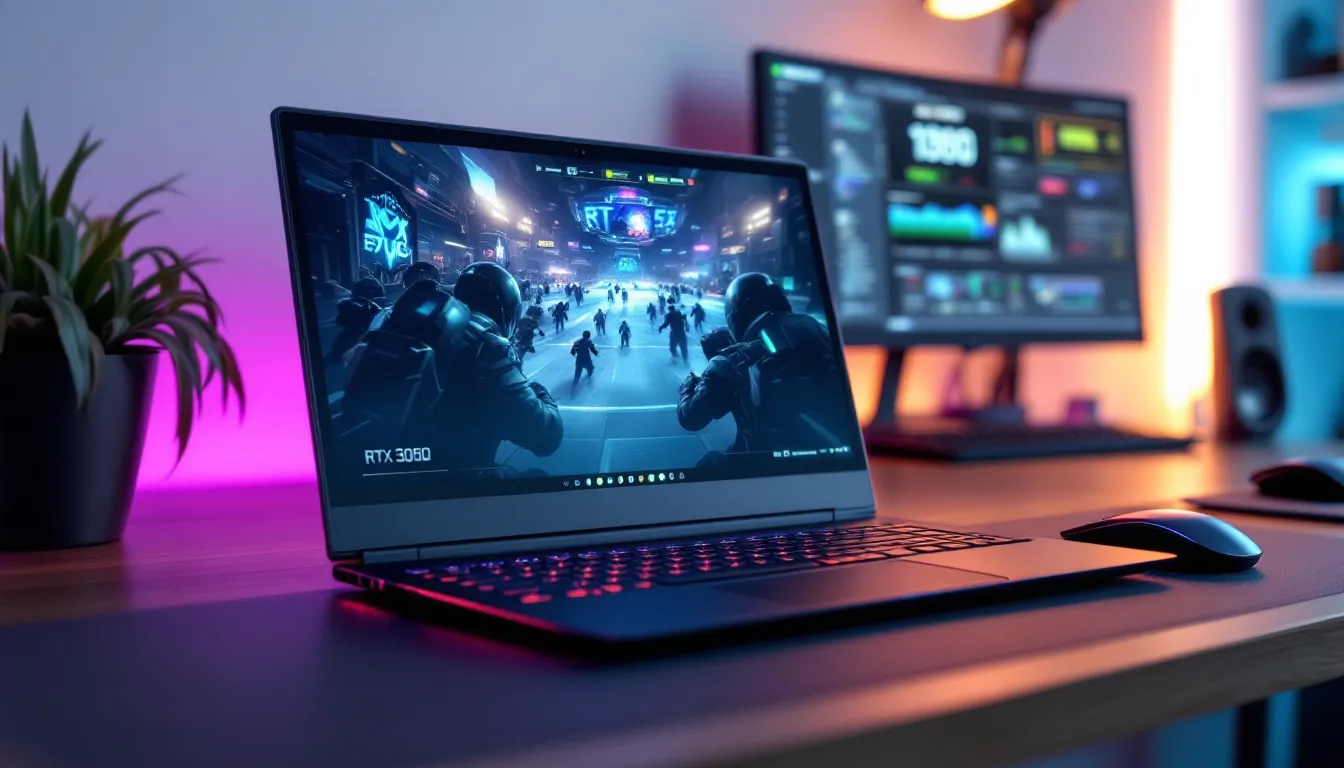
The RTX 3060 laptop GPU has quietly become one of the most reliable workhorse GPUs for portable gaming. Sure, newer architectures get the headlines, but if you’re shopping for a 3060 gaming laptop in 2026, you’re looking at a card that still delivers solid 1080p and 1440p performance without very costly. The NVIDIA GeForce RTX 3060 laptop GPU brings Maxwell-based efficiency paired with Ampere architecture improvements, making it a sweet spot for gamers who want portability without crippling their framerates. Whether you’re eyeing competitive esports titles, AAA single-player experiences, or VR content, understanding what this GPU can actually do, versus marketing claims, matters before you commit to a purchase. This guide breaks down real-world performance, optimization tricks, and how it stacks up against competing mobile GPUs so you can make an well-informed choice.
Key Takeaways
- The RTX 3060 laptop GPU delivers reliable 1080p and 1440p gaming performance, particularly excelling in competitive esports titles where it consistently achieves 100-165+ FPS at high settings.
- DLSS support is the RTX 3060’s secret weapon, providing 35-75% performance gains depending on the mode selected, making 1440p gaming at 60+ FPS viable on high settings.
- Pair your RTX 3060 laptop with a strong CPU (Ryzen 5 6600H or Intel i7-12700H), 16GB DDR5 RAM in dual-channel configuration, and a 144Hz+ display to maximize gaming potential and avoid bottlenecking.
- A quality cooling design is critical—well-cooled RTX 3060 laptops maintain 60-75°C and deliver 10-15% better sustained performance than poorly-cooled alternatives that thermal throttle at 80°C+.
- While 4K gaming is impractical on the RTX 3060, the GPU excels at 1080p and 1440p content creation workflows, with efficient video encoding and tensor core utilization for media exports.
- The RTX 3060 remains a cost-effective choice in 2026 for portable gaming, though the RTX 4060 mobile offers 15-25% better performance and DLSS 3 support if future-proofing and ray-traced gaming at higher settings are priorities.
What Is The RTX 3060 Laptop GPU?
The RTX 3060 is NVIDIA’s entry-level Ampere-based discrete GPU designed for thin-and-light gaming laptops. It’s not the fastest card in the lineup, but it occupies a sweet price-to-performance zone that appeals to gamers upgrading from integrated graphics or older GTX-based laptops. The chip packs 6GB of GDDR6 memory, a 192-bit memory bus, and 3,584 CUDA cores, delivering meaningful improvements over its predecessor while maintaining reasonable power consumption for portable systems.
Core Specifications & Architecture
Let’s talk numbers. The RTX 3060 runs at a base clock around 1.3 GHz with boost clocks pushing toward 1.8 GHz depending on the laptop OEM’s thermal design. The 6GB VRAM is generous for 1080p and 1440p gaming, though demanding 4K workloads or heavily modded games might strain it. The Ampere architecture itself brings hardware-level ray tracing cores and tensor cores, meaning you get real-time ray tracing and DLSS support, features that make a tangible difference in frame rates when paired with supported games.
Thermal design power (TDP) typically hovers between 60-80W depending on the laptop’s power configuration. This is important because it directly affects cooling requirements and battery life. Thinner gaming laptops sometimes run the 3060 at lower power limits to stay cool, which impacts sustained performance during longer sessions.
How It Compares To Desktop Variants
Don’t confuse the RTX 3060 laptop GPU with its desktop namesake. The desktop RTX 3060 has 12GB VRAM, more memory bandwidth, and higher clocks, which translates to roughly 30-40% better performance in demanding titles. But, the mobile variant was optimized specifically for the thermal and power constraints of laptops, so the performance-per-watt is actually more efficient. Think of the laptop 3060 as a scaled-down, efficiency-focused version designed for your couch gaming sessions, not your tower under the desk. The NVIDIA GeForce RTX 3060 laptop GPU represents a reasonable middle ground, not desktop-class muscle, but far ahead of integrated graphics like Intel Iris Xe.
Performance Benchmarks & Real-World Gaming Results
Numbers mean nothing without context. Here’s what the RTX 3060 actually delivers in games you probably want to play.
1080p Gaming Performance
At 1920×1080 resolution, the RTX 3060 is your comfortable zone. You’re looking at:
- Cyberpunk 2077: 60-75 FPS on high settings (without ray tracing maxed), 45-55 FPS with ray tracing medium
- Elden Ring: 70+ FPS at high/very high settings, 120+ FPS on medium settings
- Valorant, CS2, Fortnite: 120-165+ FPS easily on competitive settings
- Baldur’s Gate 3: 45-60 FPS on high settings (CPU-dependent)
These numbers assume a reasonable CPU partner (like a Ryzen 5 6600H or Intel i7-12700H) and stock settings. DLSS support can boost frame rates 30-50%, depending on the game engine. Esports and competitive players will find 1080p performance more than adequate for smooth, responsive gameplay.
Referenced benchmarking data from Tom’s Hardware shows similar performance profiles across various 3060 laptop configurations, though OEM power limits and thermal designs create variance of ±10% between models.
1440p Gaming Performance
At 2560×1440 resolution, performance gets spicier. You’re trading max settings for playable frame rates:
- Cyberpunk 2077: 35-50 FPS on medium-high settings (no ray tracing), 25-35 FPS with ray tracing low-medium
- Starfield: 45-60 FPS on medium settings, 30-45 FPS on high
- Elden Ring: 70+ FPS on high, 90+ FPS on medium
- The Witcher 3: 55-70 FPS on high settings
DLSS becomes important here. Enabling DLSS Quality mode bumps framerates by 40-60%, making 1440p a viable sweet spot for high-refresh displays. Many gamers choose 1440p high settings + DLSS over native 1080p maximum because the visual quality delta is small, while the smoothness gain is noticeable.
4K Gaming & Content Creation
Honestly? 4K is rough for the RTX 3060. You’re looking at 20-30 FPS in demanding AAA titles at high settings, or 40+ FPS on medium settings, basically slideshow territory for fast-paced games. Some lighter titles like indie games or older AAA benchmarks (pre-2021) handle 4K better, but don’t expect playable 4K gaming without DLSS and significant setting reductions.
Where the RTX 3060 shines in 4K is content creation. Video encoding, 3D rendering, and image editing leverage the tensor cores effectively. You can export 4K video in OBS or Adobe Premiere in reasonable time, not as fast as an RTX 4070, but faster than older GPUs. The 6GB VRAM limits working with very large projects, though.
Per TechSpot’s GPU analysis, the RTX 3060’s encoding efficiency makes it a capable creator’s card for 1080p and 1440p content workflows, with 4K being secondary use case.
Gaming Titles Optimized For RTX 3060 Laptops
The RTX 3060 performs across a wide spectrum. Here’s where it truly excels and where you’ll need to compromise.
Esports & Competitive Games
This is the RTX 3060’s happy place. Titles prioritize engine efficiency over raw graphics, and older engines are well-optimized:
- Valorant: 150-200+ FPS at max settings, 1080p
- Counter-Strike 2: 100-160 FPS at high settings, 1080p
- League of Legends: 120-165+ FPS at max settings, 1080p
- Fortnite: 100-140 FPS at competitive settings, 1080p
- Overwatch 2: 90-120 FPS at high/ultra, 1080p
Competitive gamers benefit immensely. 144+ FPS is achievable on literally every major esports title, giving you the responsiveness needed for ranked play. This is where a 3060 gaming laptop outperforms integrated graphics by an enormous margin, talking 60+ FPS advantage in esports titles.
AAA Single-Player Titles
Here, you’re making setting compromises or accepting 60 FPS as your target:
- Dragon’s Dogma 2: 50-60 FPS on high, 1440p (CPU-intensive, watch your processor bottleneck)
- Hogwarts Legacy: 60-75 FPS on high, 1080p: 45-55 FPS on high, 1440p
- Alan Wake 2: 40-55 FPS on high, 1080p with ray tracing
- Dead Space Remake: 60-80 FPS on high, 1080p
- Jedi: Survivor: 55-70 FPS on high, 1080p (shader-heavy, expect variance)
Modular settings matter here. Dropping ray tracing or ambient occlusion from ultra to high gains 15-20% framerate. DLSS usually isn’t enabled by default in single-player titles, so you’re often playing native resolution.
VR & Simulation Games
VR support depends on the headset, but the RTX 3060 handles most Meta Quest 3 and PlayStation VR2 experiences through PC streaming reasonably well. Simulation games like Microsoft Flight Simulator run at medium-high settings (1440p, 40-60 FPS), though demanding 4K versions struggle. The GPU provides adequate compute for physics simulations and complex scene rendering, making it viable for flight sims and racing simulators where frame timing matters more than ultra graphics.
Key Gaming Features & Technology
The RTX 3060 laptop GPU packs Ampere’s feature set. Here’s what actually impacts your gameplay.
DLSS & Frame Generation Support
DLSS (Deep Learning Super Sampling) is the RTX 3060’s secret weapon. This AI-powered upscaling reconstructs 1080p or 1440p images from lower-res renders, delivering near-native visual quality at 30-60% higher framerates.
DLSS 2 is your bread-and-butter option:
- Quality mode: imperceptible image loss, 35-45% performance gain
- Balanced mode: minimal artifacts, 50-60% performance gain
- Performance mode: noticeable softness, 65-75% performance gain
Enable DLSS Quality in demanding AAA titles and you’re talking 1440p gaming at 60+ FPS on high settings, a massive swing.
Frame Generation (DLSS 3) is newer and exclusive to RTX 40-series and newer. The 3060 does not support frame generation. This is a limitation versus the RTX 4060, though DLSS 2 still moves the needle considerably. If frame generation is important to you, upgrade planning should consider RTX 4060 or 4070.
Ray Tracing Capabilities
Ampere’s hardware-accelerated ray tracing cores are legitimately useful. Real-time reflections, shadows, and global illumination work without completely tanking framerate, unlike pre-Ampere forcing you to choose between ray tracing and playable FPS.
That said, don’t max out ray tracing on the 3060. Running ray tracing at ultra/high settings on demanding games (Cyberpunk, Alan Wake 2) drops frames into the 25-35 FPS range at 1440p. Using ray tracing at medium settings with DLSS enabled is the pragmatic approach, you get the visual fidelity with acceptable framerates. Lighter games (Minecraft, Portal, indie titles) handle ray tracing ultra without stress.
Cooling & Thermal Management
The RTX 3060 runs hotter than you’d expect for its wattage. Laptop OEMs carry out varied cooling strategies: some use vapor chambers, dual fans, and copper heatsinks: others cut corners with single-fan designs.
Thermal considerations:
- Good cooling laptops: GPU temps 60-75°C under sustained load, stable performance
- Mediocre cooling: GPU temps 75-85°C, possible thermal throttling at 80°C+
- Poor cooling: GPU temps 85°C+, noticeable performance drops
Throttle temperature is typically 83-85°C. If your laptop hits that, you’ll see 5-10% performance reduction. Elevation, ambient temperature, and dust accumulation all matter. Gaming in a cold room versus a warm room can swing 5-10°C.
If you’re buying a 3060 laptop, check reviews for thermals. Brands like ASUS ROG, MSI, and Razer typically prioritize cooling: budget brands sometimes skimp. A good cooling design is the difference between 60 FPS and 50 FPS in sustained gaming sessions.
Choosing An RTX 3060 Laptop: What To Consider
The GPU is one piece. Here’s what else matters when you’re shopping for a 3060 gaming laptop.
Processor & RAM Configurations
Pair a strong CPU with your RTX 3060. The GPU will bottleneck a weak processor (like a Ryzen 3 or i5-10th gen), leaving performance on the table.
Ideal partners for RTX 3060:
- Ryzen 5 6600H / 7535H: 6-core performers, excellent value, good single-thread speed
- Intel i7-12700H / 13700H: 12-14 cores, overkill for 3060 but future-proof
- Ryzen 7 6800H: solid 8-core option, matches 3060 capability well
Avoid pairing 3060 with entry-level CPUs like Ryzen 3 or i5-10th gen, you’re wasting GPU potential.
RAM: 16GB is the bare minimum, and it should be DDR5 if available (2024+ laptops). Dual-channel configuration matters: single-channel RAM cripples performance 10-15%. Many budget 3060 laptops ship with 8GB, upgrade that or buy a model with 16GB stock.
Display Quality & Refresh Rates
A 3060 gaming laptop paired with a 60Hz display is like buying a sports car with regular tires. Your GPU can push frames: your screen needs to display them.
Practical pairings:
- 1080p 144Hz: Excellent for competitive gaming, RTX 3060 can sustain 100+ FPS
- 1440p 165Hz: Ambitious, requires DLSS on demanding titles, but achievable
- 1080p 360Hz / 1440p 240Hz: Overkill for RTX 3060: you won’t consistently hit those framerates
Panel quality (IPS vs TN) and color accuracy matter less for gaming but matter for content creators. Refresh rate is non-negotiable if you game. A 144Hz 1080p IPS panel is an excellent sweet spot for 3060 laptops.
Also check: response time (6ms or lower is ideal) and brightness (300 nits+ for outdoor visibility). Gaming laptops with poor displays waste the GPU’s potential.
Battery Life & Portability Trade-Offs
Here’s the honest reality: an RTX 3060 laptop is not a battery powerhouse. Gaming laptops run hot and draw significant power.
Realistic battery expectations:
- Gaming mode: 2-3 hours on battery
- Productivity mode (integrated graphics): 4-6 hours
- Streaming/browsing: 5-7 hours
Size and weight vary. A 15.6″ 3060 laptop weighs 5-6 lbs typically: 17.3″ models push 6-7 lbs. If you’re carrying this daily, weight matters. Thinner, lighter 3060 laptops (under 5 lbs) exist but often sacrifice cooling and battery.
The trade-off: portability vs. sustained performance. A chunky gaming laptop with proper cooling will outperform a thin one by 10-15% in sustained sessions, but you’ll hate carrying it everywhere. Decide your priorities: daily backpack carry favors thin + light: desktop replacement favors thick + excellent cooling.
One more thing, check if the laptop charges via USB-C or proprietary connector. USB-C charging is more convenient for travel.
RTX 3060 Vs. Competing Mobile GPUs
The RTX 3060 isn’t alone in the market. Here’s how it stacks up.
RTX 3060 Vs. RTX 4060 Mobile
The RTX 4060 is the natural successor, and it’s better in almost every way, but at a price premium.
RTX 4060 advantages:
- 15-25% faster raw performance
- 8GB VRAM (vs. 6GB)
- DLSS 3 with frame generation
- More efficient power consumption
- Better driver support (newer architecture)
RTX 3060 advantages:
- Cheaper (usually $200-400 less for a laptop)
- Still plenty fast for 1080p and 1440p gaming
- Wider selection of used/discount models
- Older drivers are stable and mature
Verdict: If you’re budget-conscious and game at 1080p primarily, the 3060 delivers solid value. If you’re buying new and want 1440p future-proofing, the 4060 is worth the premium. The performance gap widens at 1440p and beyond.
RTX 3060 Vs. AMD Radeon RX 6600M
AMD’s competing mobile GPU is the RX 6600M, roughly equivalent in raw performance but with different strengths.
RTX 3060 advantages:
- DLSS support (AMD has FSR, which is less effective)
- Ray tracing performance advantage
- Superior driver stability on gaming titles
- Better power efficiency in many workloads
RX 6600M advantages:
- 8GB VRAM standard (vs. 6GB)
- Slightly better rasterization performance in some engines
- Cheaper on average
- Supports some AMD-optimized games with superior performance
Real-world difference: RTX 3060 wins in ray-traced games and DLSS-enabled titles due to superior driver optimization. RX 6600M trades blows in non-ray-traced games and offers better value if you find a deal. DLSS’s quality advantage over FSR makes the 3060 my preference for newer, demanding titles. Laptop Mag’s comparison details performance across a range of games: the 3060 typically edges ahead in competitive and demanding AAA titles.
Bottom line: RTX 3060 is marginally better for gaming, especially with ray tracing. RX 6600M is cheaper and viable if you find a good laptop. Either works for 1080p and 1440p gaming.
Optimization Tips For Maximizing RTX 3060 Performance
You’ve got your 3060 laptop. Here’s how to squeeze every frame.
Driver Updates & Game Settings
Driver discipline is critical. NVIDIA releases driver updates every 1-2 months. Gaming optimizations can swing 5-15% performance depending on the title.
Best practices:
- Update drivers monthly (use NVIDIA GeForce Experience or manual downloads)
- Check driver release notes for your specific games
- Rollback if a new driver causes stuttering or crashes (common post-launch)
- Use Game Ready drivers, not Studio drivers, for gaming performance
In-game settings hierarchy (impact on framerate, listed from highest to lowest):
- Resolution: 1440p to 1080p = ~40-50% FPS gain
- Ray tracing: Ultra to off = 30-50% FPS gain
- Shadow quality: Ultra to medium = 15-20% FPS gain
- Ambient occlusion: On to off = 10-15% FPS gain
- Texture filtering: 16x to 2x = 5-10% FPS gain
Prioritize resolution and ray tracing when optimizing. Drop those before touching minor settings. DLSS often counters resolution penalties, so enable it aggressively.
For competitive games (Valorant, CS2), max everything and just play. Your GPU can push 120+ FPS. For demanding AAA games, enable DLSS Quality, drop ray tracing to medium, and fine-tune shadows until you hit your target framerate (60 FPS for smooth, 120+ FPS for competitive).
Overclocking & Power Settings
Overclocking is optional but yields 5-10% performance gains on RTX 3060 laptops. Proceed cautiously, laptops don’t dissipate heat like desktops.
Safe overclocking approach:
- Use MSI Afterburner or NVIDIA’s Control Panel
- Increase GPU clock +50-75 MHz (conservative)
- Increase memory clock +100-150 MHz
- Test stability with Furmark or a demanding game for 30 minutes
- If stable, you’re golden. If crashes occur, dial back
- Monitor temps: don’t exceed 80°C sustained
Power settings matter too:
- Set maximum power delivery to 100% in BIOS (many laptops ship at 80-90% default)
- Disable CPU power saving if gaming (some laptops throttle CPU while GPU is active)
- Close background apps and browser tabs: RAM speed impacts GPU utilization
- Use High Performance power plan in Windows (not Balanced)
These tweaks combined can net 8-12% performance improvement without risk. Overclocking aggressively (100+ MHz) risks instability and shortens hardware lifespan, not worth it for a 5% gain.
One practical tip: run games in Windowed Fullscreen mode, not Exclusive Fullscreen. Exclusive mode can cause driver issues on some laptops. Windowed Fullscreen eliminates Alt-Tab stuttering too.
Conclusion
The RTX 3060 laptop GPU remains a solid choice for 2026 gaming if you’re pragmatic about expectations. You’re not getting desktop-class performance or 4K gaming, but you’re getting dependable 1080p and 1440p gameplay across competitive esports and demanding AAA titles. Paired with a decent CPU, proper cooling design, and 16GB RAM, a 3060 gaming laptop delivers on its promise of portable gaming without compromise.
Focus on the full system when buying, the GPU is just one piece. A poorly-cooled 3060 laptop underperforms a well-cooled one by 10-15%. A weak CPU bottlenecks GPU potential. A 60Hz display wastes your framerate. These details separate a great 3060 laptop from a frustrating purchase.
If you’re in the market, compare models directly and check thermal designs and component pairing. Don’t buy on GPU alone. And if 1440p or newer game support is non-negotiable, the RTX 4060 or higher is worth the premium for future-proofing. But for budget-minded gamers comfortable with 1080p and 1440p gaming at high settings, the NVIDIA GeForce RTX 3060 laptop GPU still punches well above its price point in 2026.